
Bulk upload users
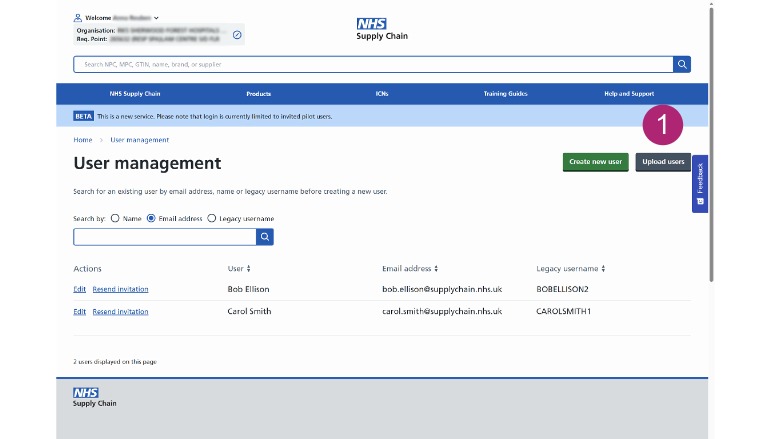
Open the Upload users page
- Click Upload users on the right-hand side of the page.
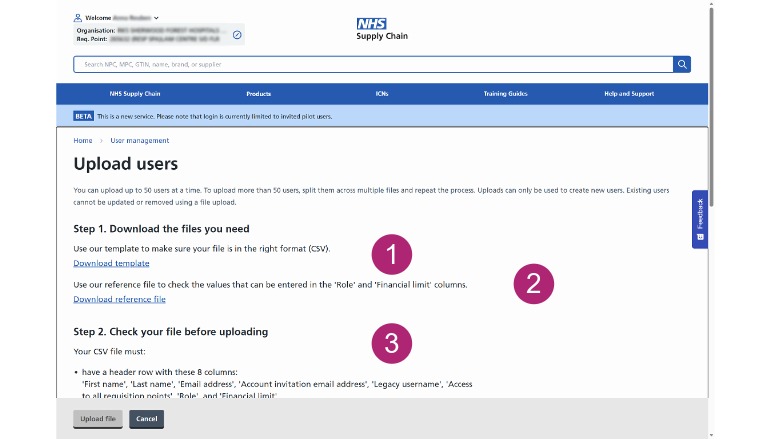
Download and complete the CSV file
The Upload users page contains the files and instructions you need to add up to 50 users at the same time.
- Download the template CSV file.
- Download the reference CSV file.
- Follow the instructions on the page when completing the CSV file.
- Save the completed file to your device
Use the template CSV file to enter the details of the users you want to add. Use the CSV file to help you complete the template correctly.
Follow all the instructions provided. Incorrectly entered or formatted information may prevent the file from uploading successfully.
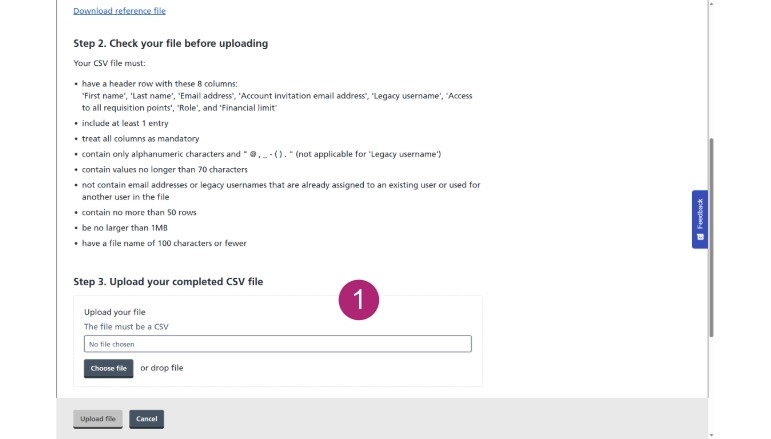
Add your completed file
When your CSV file is complete, move to step 3 on the Upload users page.
- Choose the completed CSV file from your device or drag and drop it into the Upload your file area.
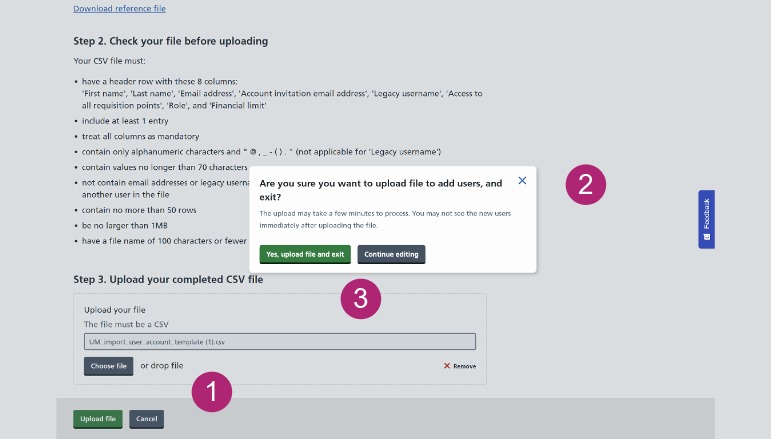
After you upload the file, the Upload file and Cancel buttons become available.
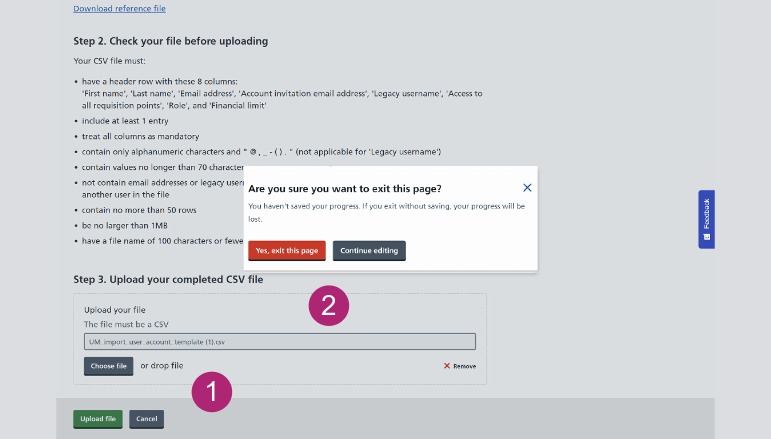
Cancelling the upload
You can cancel before uploading the file if you need to make changes or do not want to continue.
- Select Cancel.
- Choose whether to exit the page or continue editing when the warning appears.
Choose to continue editing if you want to return to the Upload users page without leaving the process.
Uploading the file
- Select Upload file.
- Review the confirmation message.
- Confirm that you want to upload the file or choose to continue editing.
The upload will begin after you confirm.
After your upload has finished
Once the upload has been confirmed, you’ll see notifications showing the progress of your upload.
These will let you know if there are any errors, when the upload is in progress and how many users have been successfully added.
When the upload is complete, you’ll return to the User management page.
To see the users you’ve just added, manually refresh the page.
Your newly uploaded users will then appear in the user list.