
Creating users manually
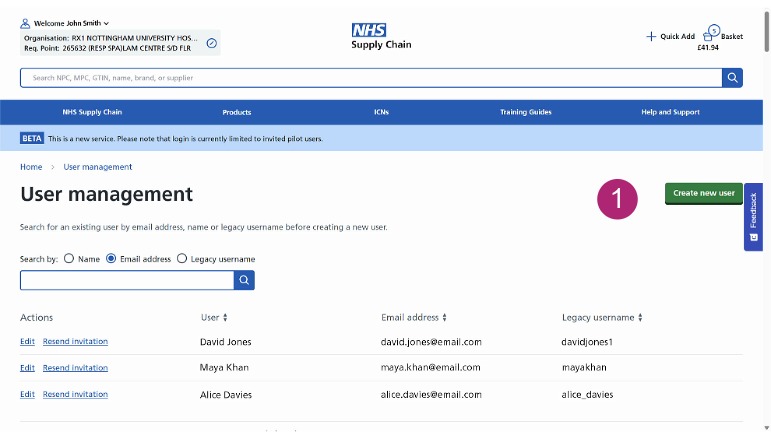
Creating a new user
- Click Create new user
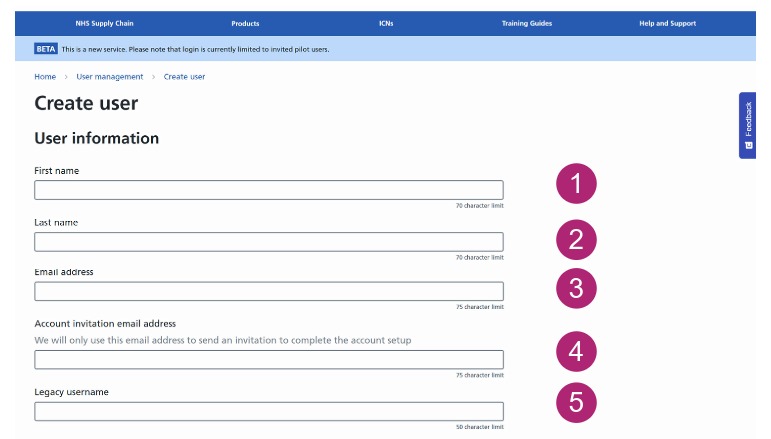
User information
- Complete all the required user information fields
- Detailed information for user permissions and roles can be viewed
- Select Yes or No for access to all requisition points
- Select the role required for the user
- Select the required financial limit for the user
After completing the fields the Create user button will change to green.
Setting financial limits
You will also need to set an appropriate financial limit for users who can place or approve orders.
Users with the Product browser role do not need a financial limit because they cannot place orders.
If you set the financial limit to £0, the user can still place an order, but it will need to be approved by an authorised user within your organisation before it can proceed.
The maximum financial limit you can set is £100,000.
There is no option to give a user an unlimited financial limit.
User invitations
The invitation email address is only used to send the user the information they need to complete their account setup. It is not used as their main account email address.
If the user does not receive the invitation email, ask them to check their inbox and spam or junk folders.
The existing username is the current username from the NHS Supply Chain website that is used to login.
Requisition point access
You will be asked whether the user should have access to all requisition points for your organisation.
- If you select Yes, the user will be given access to all requisition points for your organisation
- If you select No, the requisition points the user already has access to on the existing NHS Supply Chain website will be carried over to their new account.
Editing an existing user
You can also review and update the details of an existing user.
To find the user you want to review, you can search using their name, email address or legacy username.
Once you have selected the user, you can review their account details and make any changes that are needed.
The fields shown when editing a user are the same as those used when creating a new user.
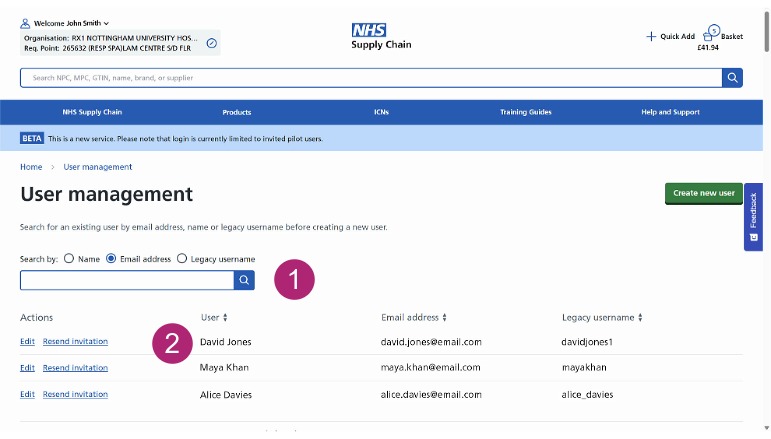
Editing users
- A user can be searched for by Name, Email address or Legacy username
- Click Edit
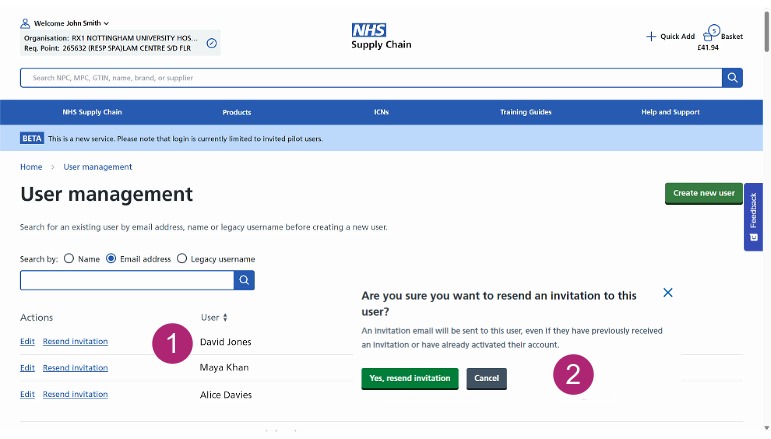
Resending an invitation
If a user has not completed the account setup, you can resend their invitation from user management.
- Click resend invitation
- Click the green Yes resend invitation button in the confirmation box