Creating lists
List creation
This guide explains how to create a new list and how to share or keep it private.
To create a list, you must be logged in. Any user can create a list. Access the List Overview page by clicking on the 'Your lists' link in the account drop down. A list can be created by clicking the 'Create new list' button on the List Overview page. A user can create up to ten lists.
When the 'Create new list' CTA is selected, a pop-up page opens where the list name and list description (optional) can be added. It is compulsory to add a list name when creating a list.
A list can either be public or private. A private list can only be viewed by the list creator while a public list can be shared to others within the same trust. To make a list public, tick the 'Make this list shareable with others in my trust' box.
When the details have been saved by selecting the 'Save list' button, a card will be created on the list overview page with a summary of the list. The summary includes the list name, description, date created and edited, the number of products in the list and a private or public label.
Clicking the list name will open the List Detail page. A public list will have a 'Copy list link' which when clicked will copy the link URL to the clipboard which can then be shared to others in your trust. When the shared URL / link is selected, it will open the List Detail Page.
A user will need to be logged in to open the shared link.
-
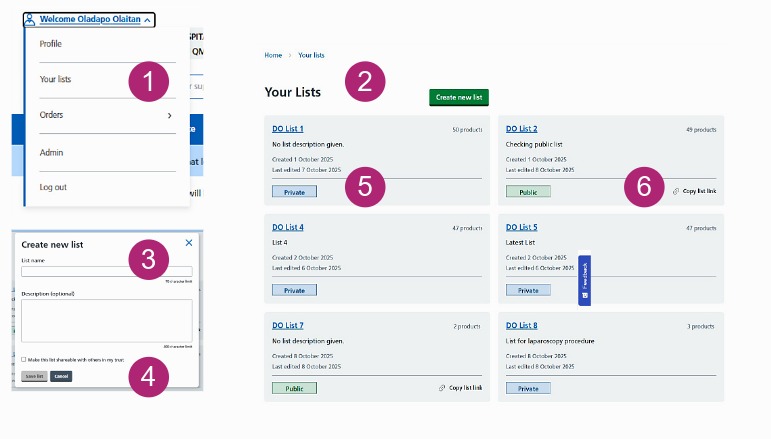
Select 'Your lists' from the account dropdown menu.
-
Click the green 'Create new list' button on the Your Lists page.
-
The pop-up page will ask you to enter a list name. This is compulsory. You can also add an optional description.
-
You can make a list public by checking the 'Make this list shareable with others in my trust'. Save your details by selecting 'Save list'.
-
The summary includes the list name, description, the date it was created and edited, number of products, and if it's public or private.
-
Click the 'Copy link list' to copy your list's URL to the clipboard
Adding products
You can add a product to a single list or multiple lists at the same time.
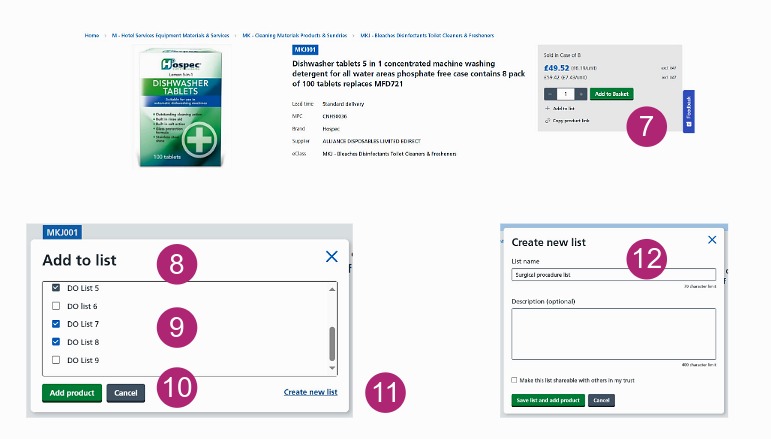
To add a product to a list, open the product page and select 'Add to list'. This will open an 'Add to list' pop-up screen.
Lists previously created will be displayed on the 'Add to list' screen. A product can be added to one or multiple lists by ticking the box or boxes next to the list you require. If a product is already in a list, the checkbox next to the list will be preselected when the 'Add to list' screen is opened.
Clicking the 'Add product' button will add the product to the list and close the 'Add to list' screen. As many as 50 products can be added to a list.
A new list can be also created from the 'Add to list' pop up screen. This can be done selecting the 'Create new list' link.
This will open the 'Create new list' screen. The list name and description (optional) can then be added. To save the list, select the 'Save list and add product' button. This will save the list and automatically add the product to the list.
List detail page
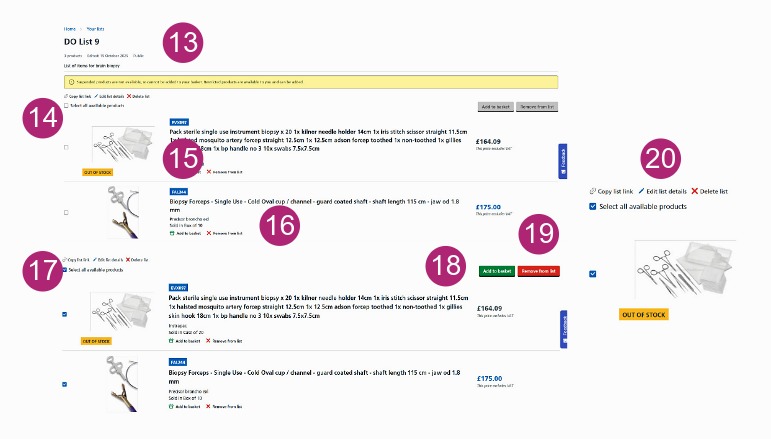
When you click into a list, you can now add products to your basket or remove products from the list.
The products in a list can be viewed on the List Detail page. You have options to copy the list link (if public), edit the list or delete the list on the List Detail page.
The 'Add to basket' function is available under each product. You will be able to add the product to your basket if your user role allows and that product is available to order.
To add multiple products to the basket, tick the box next to the products you wish to add and click on the 'Add to basket' button at the right corner of the list. A message will appear in the bottom right-hand corner of the page confirming the action.
The 'Remove from list' function can be used to remove items from a list. To remove multiple products from the list, tick the box next to the products you wish to remove and click on the 'Remove from list' button at the right corner of the list. A message will appear in the bottom right-hand corner of the page confirming the action.
The 'Select all available products' can be used to select all the products within the list that are available to buy. The products can then be added to the basket or removed from the list using the respective buttons.