Tailored catalogue management
Overview
You can now edit your tailored catalogue.
Once your tailored catalogue has been created you are able to:
-
edit the name and description
-
add or remove products
-
assign users to or remove them
-
view existing products within the specific tailored catalogue
-
delete the entire tailored catalogue
-
access your tailored catalogue from the 'Admin' screen
You can also see who created and last edited it from here.
Tailored catalogues cannot be created using a mobile phone
-
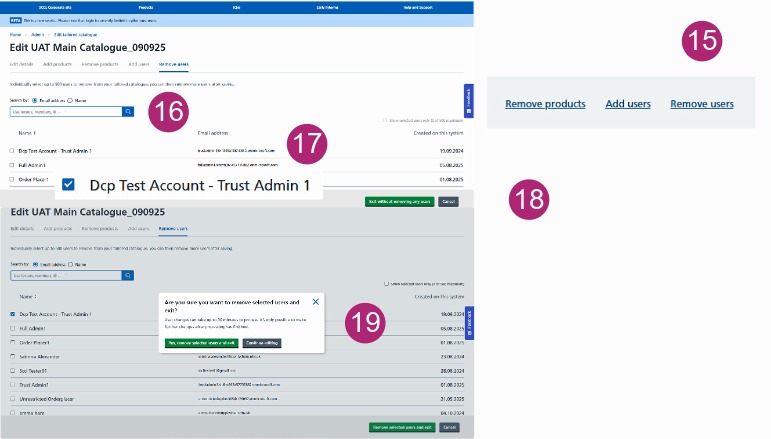
View your tailored catalogues from the 'Admin' page.
-
Use the links at the bottom to 'Edit details', 'Add products', 'Remove products', 'Add users' or 'Remove users'.
-
You can see who created the catalogue, along with the date and user for the most recent edits.
-
Use the 'View' button to view the products within the catalogue.
-
You can delete the catalogue with the red 'Delete' button.
Editing the description
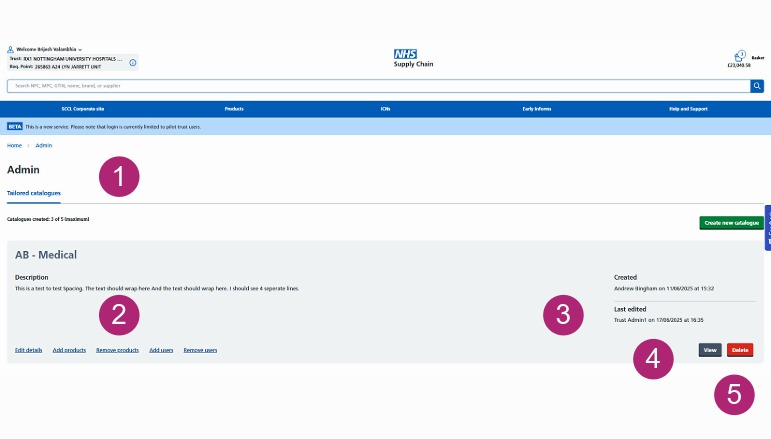
This section covers how to change your tailored catalogue's name and / or description.
To change the catalogue name and / or description click the 'Edit details' link to open the 'Edit details' screen.
After you’ve made your changes click on 'Save details and exit' and the subsequent pop-up message to confirm.
Alternatively clicking 'Cancel' will return you to the Admin home page and your changes will not be saved.
Adding new users to your catalogue
This section covers how to add users to a tailored catalogue.
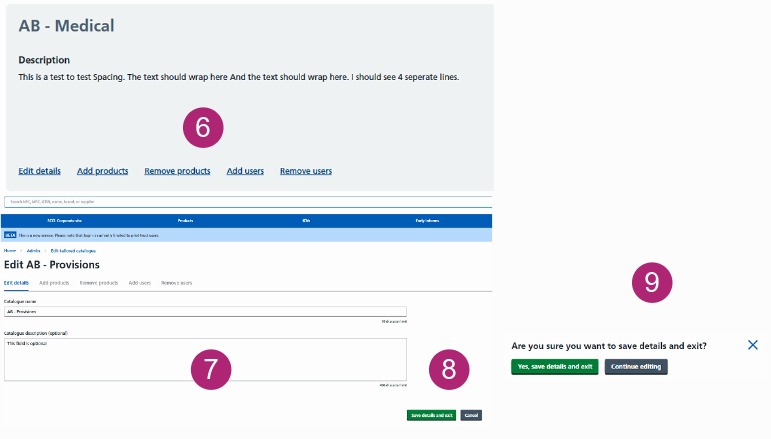
You can add users from the Admin screen by clicking 'Add users' for the relevant catalogue.
This will display a list of all the catalogue users.
Search for users by their name or email address.
Tick the checkbox against the user(s) you wish to add from the list of users displayed.
Once you’ve selected the user(s) to add, a green 'Add selected users and exit' button will appear (in place of the 'Exit without adding any users' button). Clicking this, will display a pop-up message asking you to confirm you want to add the selected users.
If you have not selected any users to add, then the green 'Exit without adding any users' button will still show. Click this if you do not wish to add any users, and you will be taken back to the main Admin screen.
Removing users from a catalogue
This section describes how to remove users from a tailored catalogue.
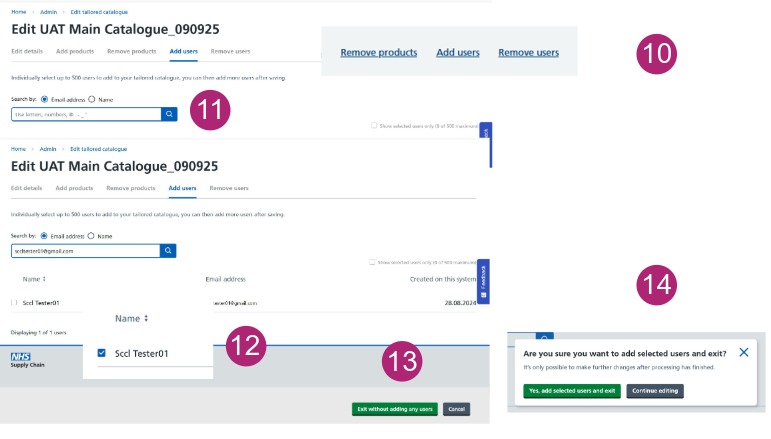
You can remove users from the Admin screen by clicking 'Remove users' for the relevant catalogue.
This will display a list of all the catalogue users
Search for users by their name or email address.
Tick the checkbox against the user(s) you wish to remove.
Once you’ve selected the user(s) to remove, the green
'Exit without removing any users' button will change to say 'Remove selected users and exit'. After you have clicked this, a pop up message will ask you to confirm you want to remove the selected users.
If you have not selected any users to remove, then a green 'Exit without removing any users' button remain. Click this if you do not wish to remove any users.
You will then be taken back to the main Admin page