Manual tailored catalogues
Adding products manually
This section outlines how to add complete categories or individual products.
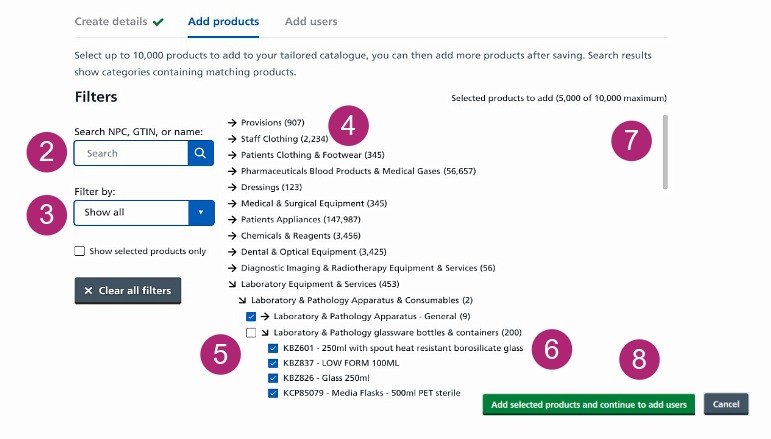
You can search for products by NPC, GTIN, name (input full NPC and GTIN codes) and you can also filter products using the filter options.
Products will be listed in eClass order. Select the arrow next to the eClass category to expand it and view the subcategories and the individual products that sit within them.
When you get down to the third level in the category, you can either add all the products within that level or just choose individual products. To add all the products within the category tick the box next to the category name.
To only add certain products, tick the box against each individual product. You cannot select the whole category and then remove singular products from it.
You can upload a maximum of 10,000 products at a time. The total number of products selected is shown above the list of eClass categories.
Click the green 'Add selected products and continue' button to proceed.
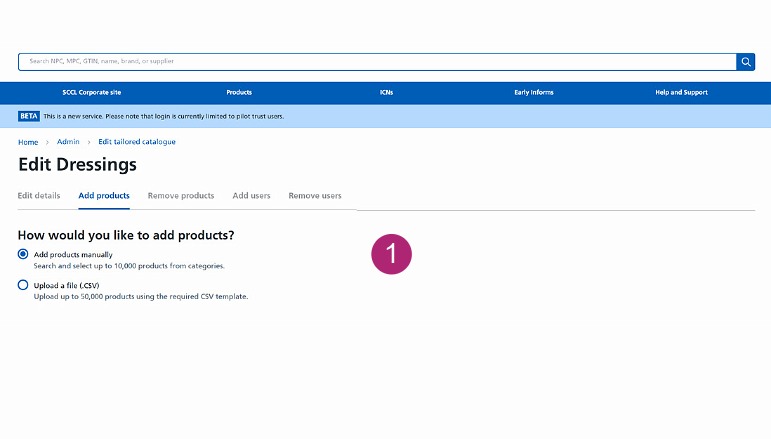
- Select Add products manually from the add products tab
Confirming products to add to your tailored catalogue
The final steps for creating your tailored catalogue are confirming your selected products and proceeding to upload.
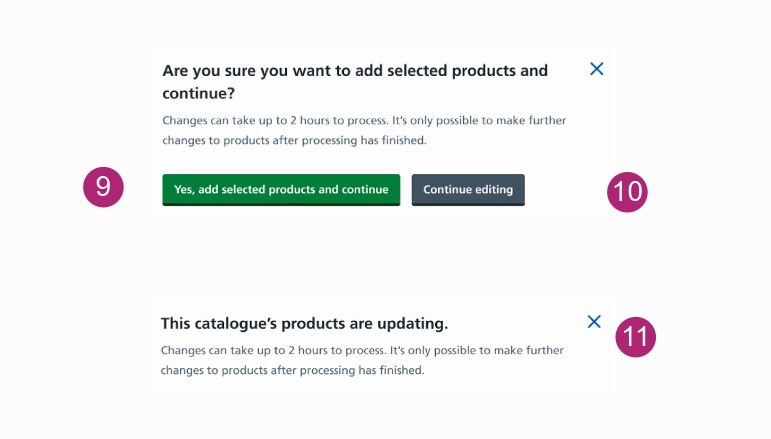
After clicking the 'Add selected products button and continue', a pop-up message will appear asking if you’re sure you wish to continue.
-
select the green 'Yes, add the selected products and continue' button if you’re happy to proceed
-
alternatively select the grey 'Continue to edit' button to make any changes to your selected products
Once you’ve clicked the green button to add the products, it can take up to two hours to complete the upload.
While the upload is in progress:
-
you’ll be unable to view the new catalogue or add / remove products
-
the button to create a new tailored catalogue will be grey
If the upload has not finished, you will see this pop-up notice if you try to add or remove products.
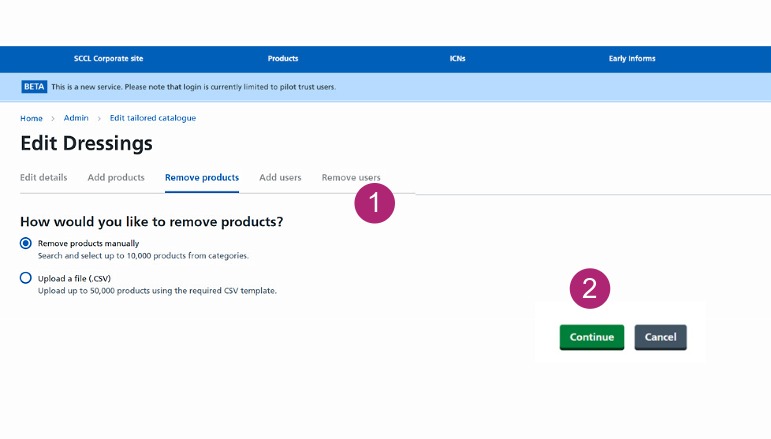
Removing products manually
-
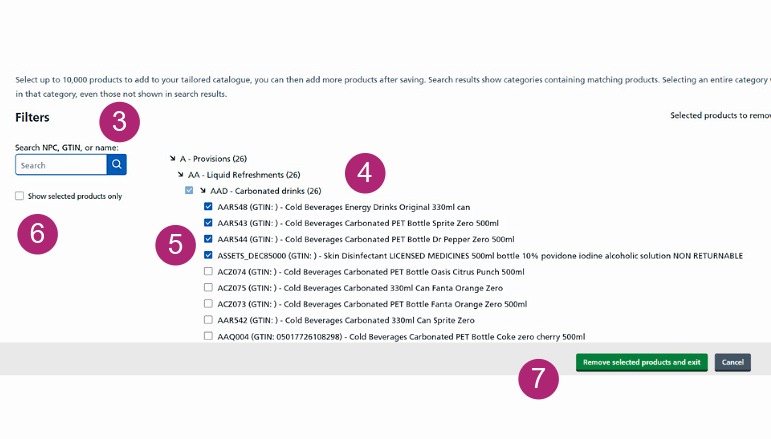
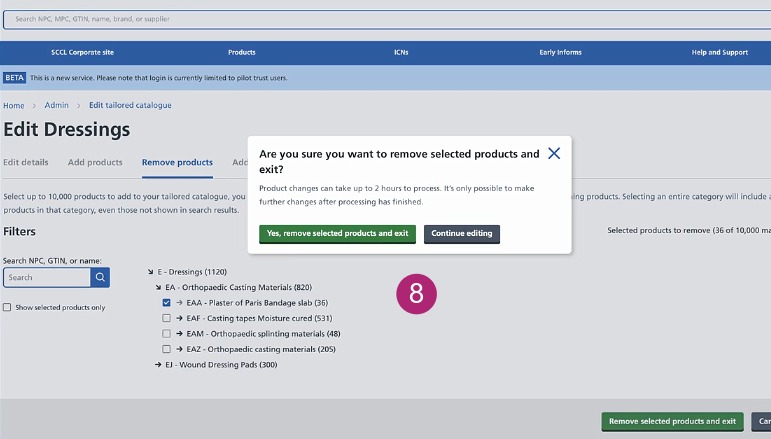
Select Remove products manually from the remove products tab.
-
Click the green Continue button to proceed.